
Give AI the job, not the code.
Say what you need. Kullya AI works on your site's pages, content and styles, shows the result in a live preview, and asks before it makes anything permanent.
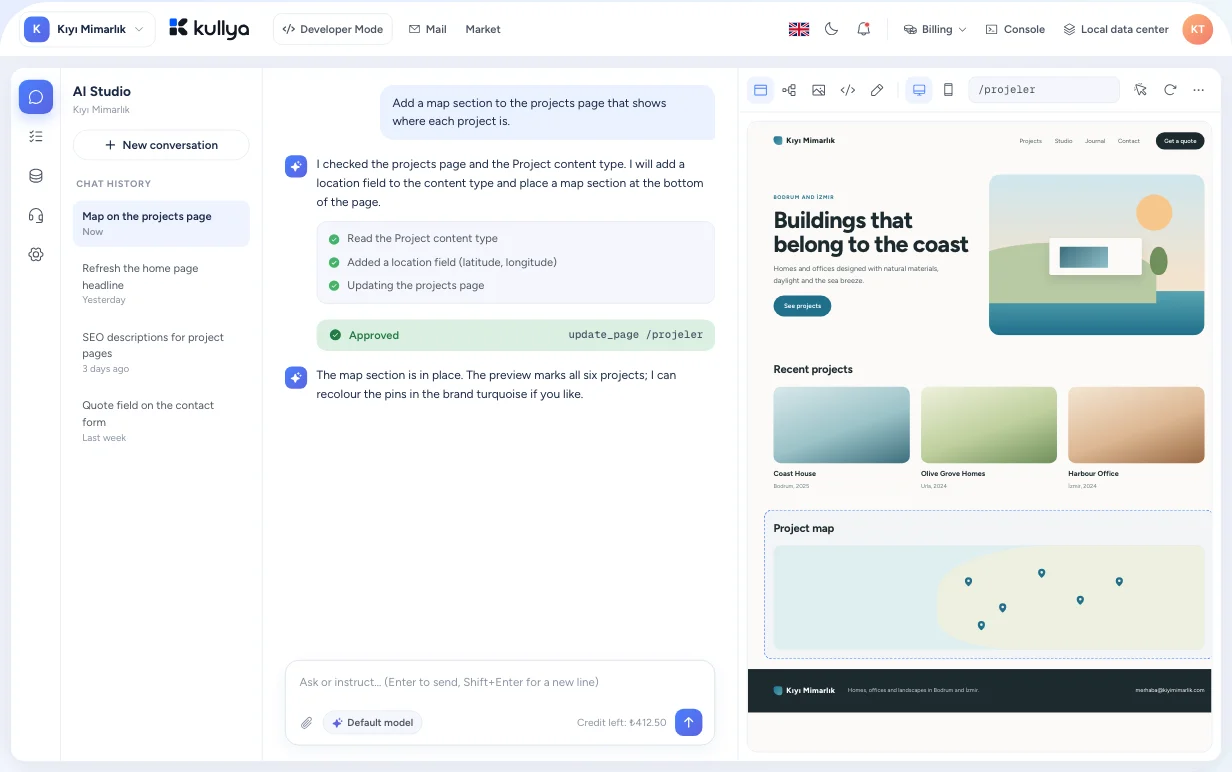
A chat box doesn't know your site
Most AI tools hand you a block of text or code. Getting it into your site, finding the right page and checking nothing else broke is still your job. Nobody tells you what changed or how to undo it.
Kullya AI works inside your site
The AI uses the same tools you use in the panel. It reads pages, views, content records and styles, and changes them when needed. Reading steps run on their own; changing steps pause and wait for approval, following the rule you set.
- Tools that read run on their own; tools that change things need your approval by default.
- Each reply lists the objects the AI changed.
- Changes land in the site log, so you can return to an earlier version.
- Usage and remaining credit show up right in the chat.
From a request to a checked change
Describe what you want
Type your request in Studio's chat, or click an element in the preview to attach it as context.
The AI reads your site
It looks at the relevant pages, views and styles. These steps run without waiting, and the chat shows what it's doing.
Approve the change
When something needs to change for good, the AI stops and shows what it plans to do on an approval card. You approve or decline.
Check it in the preview
Look at the result in desktop, tablet and mobile views, and open server errors and script logs from the same screen.
Roll back if needed
See which objects the AI changed in that reply, and return to an earlier version from the site log.
What the AI can do on your site
From idea to site plan
When you create a site with AI, it drafts a plan first. You review it and ask for another if you like; once you approve, the build starts and you follow it step by step.
Real site objects
The AI works on pages, layouts, views, styles, scripts, content, labels and product records through the panel's own tools. What it makes isn't a copy you then have to move into your site.
Starts from what you pick
Click an element in the preview and it's attached to the chat. The AI doesn't guess the target; it finds that element in the page source.
Checks its work against errors
The AI can read server errors and script logs to check the effect of a change. You see the same logs in Studio's bottom panel.
Inline AI on the page
Select an element in the visual editor and describe what you want. The AI prepares a suggestion; once you accept it, it joins the editor's normal undo and save flow.
Routines and long tasks
Turn recurring work into scheduled routines and follow long-running tasks in one list. Frequency and count limits are spelled out on screen.
You stay in control
- Every tool that changes something asks for approval unless you explicitly allow-list it. The default rule is the strictest one.
- The approval rule is stored per site and enforced on the server, so it can't be bypassed from the browser.
- The AI works with your permissions. If you can't reach a section, neither can it.
- Each reply lists what changed, and the site log lets you go back to an earlier version.
- Model choice and credit usage are visible in the chat.
Who it's for
- Businesses
- Update your site without code: describe what you want, see it in the preview, approve it.
- Agencies
- Hand repetitive edits on client sites to the AI, with a record and a way back for every change.
- Content teams
- Start text and page edits from the element you pick. Nothing is saved until you accept the suggestion.
- Developers
- The AI uses the same tools as the panel. Review view, script and style changes alongside the logs.
- Operations teams
- Operations teams set the approval rule for tools that make changes at site level; the rule is enforced on the server and the AI never goes beyond the user's permissions.
Write your first request
Try Kullya AI on your own site, seeing and approving every step.