
A trail for every change, control over every release.
Pages, views, styles or content: every change is recorded. See what changed and when, and go back to that point if you need to.
Changes with no way back
You edit a page and the site breaks. To find the change that caused it, you either restore the whole site from an old backup or fix what you remember by hand. Moving work from staging to live comes down to copying files and wondering what you forgot.
History lives inside the site
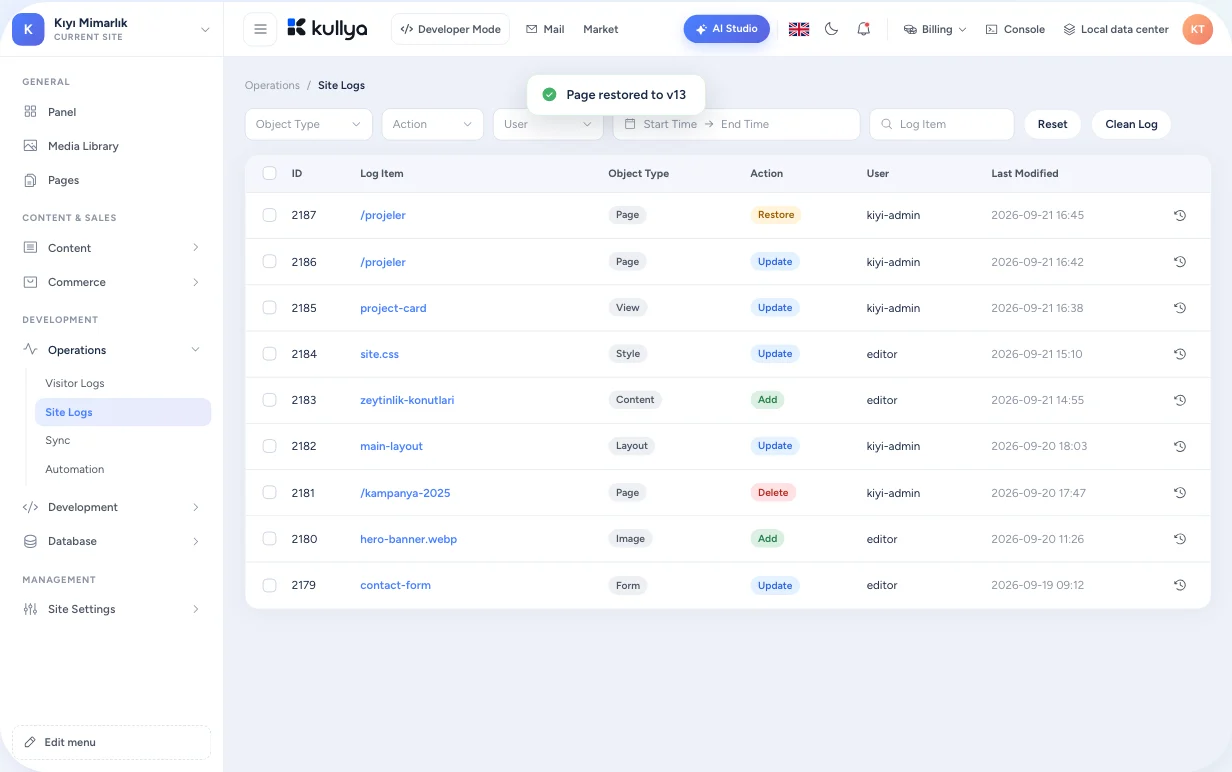
Kullya writes every save to the site log. That log powers both undo and publishing: whether you roll a change back or push it to another server, you work with the same records.
- Changes tracked per object, with who and when
- Undo a single change or a group you pick
- Check out a new site from any point
- Push only what changed to a remote site
Finding a change and undoing it
Open the site log
The site log in the System menu lists every change in time order.
Browse an object's versions
Open the version list of a record to see how that page or style looked before.
Compare two versions
The two versions you pick open side by side, with the difference shown line by line.
Undo
Undo one change or several you select. You can also roll the whole site back to a chosen record.
Publish what's ready
On the sync screen, push pending changes to the site on a remote server, or pull from it.
What you can do
Version history per object
Each save of a site object such as a page, layout, view, style, script or content item is kept as its own version you can compare.
Selective undo
Undo the one change that went wrong without touching the work that came after it. Roll the whole site back to a chosen record when you need to.
A new site from history
Check out the state up to a chosen record as a separate site. Handy for looking at an old version without touching the live one.
Change packages
Export the changes you select, or a whole batch, as a file. You can also export the entire site as a package and import it elsewhere.
Incremental publishing and conflicts
Sync moves only the records that changed between two sites. If the same object changed on both sides, the process stops at a conflict screen and you decide which version stays.
From staging to live
Prepare and test the work on one site, then push it to a site on another server when it's ready. Records you don't want to send go on an ignore list.
Control and limits
- The site log is not a backup. It can be cleared, and clearing is permanent, so plan backups and disaster recovery separately.
- A remote server connection is set up with an access key limited by role and expiry.
- Conflicting changes are never silently overwritten; force push is a separate, deliberate action.
- Undo, rollback and checking out a site from history are open only to users with site log permission.
Who it's for
- Businesses
- When an update goes wrong, return to the previous state without rebuilding the site.
- Agencies
- Finish client work on a staging site and push only what changed once it's approved.
- Content teams
- See what changed on a page and when, and undo a bad edit in one step.
- Developers
- Export changes as packages and move them between environments with sync.
- Operations teams
- Operations teams see pushed and pulled changes with user and time in the logs, and roll back a bad change from the site log.
Change things with confidence
Every save stays in the log. Compare, undo and publish when you're ready.